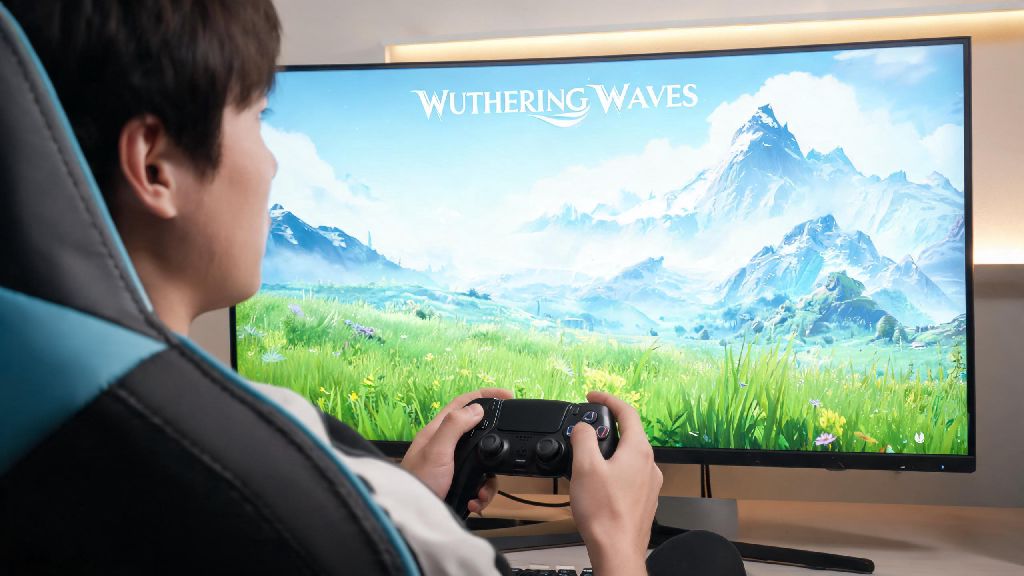
If you’ve spent hours hunched over your desk climbing tall peaks or gliding across Jinzhou’s open plains, you’ve probably wondered can I play Wuthering Waves with a controller to cut down on wrist strain. I’ve tested every major controller on the market with Wuthering Waves over the past few months, so I can break down exactly what works, what doesn’t, and how to get the best possible experience no matter what platform you play on. This guide covers official support, setup steps, and tweaks to make controller play feel as smooth as possible.
Can I Play Wuthering Waves With a Controller on All Platforms?
The short answer is yes, Wuthering Waves has native controller support across all currently released platforms, with plans to extend support to upcoming console versions as well. Kuro Game built controller compatibility into the game from launch, so you won’t need to rely on clunky third-party workarounds for most setups. Supported controllers include official Xbox Series X/S, Xbox One, PS5 DualSense, PS4 DualShock, and Nintendo Switch Pro controllers, plus most third-party X-input compatible options like 8BitDo models.
On PC, controller support works for both Steam and standalone game client versions. On mobile, you’ll need to be running Android 11 or later, or iOS 16 or later for seamless native pairing. Older operating system versions may still work, but you might run into occasional connection drops or unresponsive buttons. Always update your controller's firmware before pairing to avoid most common compatibility issues before they start.
Cloud gaming versions of Wuthering Waves also support controllers, as long as your chosen cloud gaming app has controller support enabled. You don’t need any extra setup for cloud play beyond pairing your controller to your device before launching the cloud stream. Note that some budget no-name controllers may not be detected automatically, but you can usually fix this by switching the controller to X-input mode with the physical toggle on most third-party models.
Step-by-Step Controller Setup for Wuthering Waves
Setting up your controller for Wuthering Waves takes less than two minutes for most devices, with very little troubleshooting required. For PC players, start by pairing your controller to your computer via Bluetooth or USB cable before launching the game. Once the game loads, open the settings menu, navigate to the Input tab, and toggle “Controller Mode” on. The game will automatically detect most controllers and load the default button layout immediately.
If your controller isn’t detected on Steam, you may need to adjust your Steam Input settings. Open your Steam library, right click on Wuthering Waves, select Properties, then Controller, and set the override to “Enable Steam Input” if you’re using a non-Xbox controller, or “Disable Steam Input” if you’re getting conflicting inputs. For mobile players, pair your controller to your phone or tablet via Bluetooth first, then launch Wuthering Waves. The game will automatically switch to controller layout as soon as it detects the paired device, no extra settings required.
You can remap every single button in the Input settings to fit your play style, so don’t feel stuck with the default layout if it feels awkward. If you’re using a PS5 DualSense controller, you can also enable haptic feedback and adaptive triggers in the Advanced Input settings for a more immersive experience, especially during boss fights where you can feel the weight of your resonant attacks.
Pros and Cons of Using a Controller for Wuthering Waves
I’ve logged more than 50 hours of Wuthering Waves play time split evenly between controller and keyboard/mouse, so I have a clear sense of which input method works better for different play styles. There’s no one-size-fits-all answer, but these are the biggest advantages and downsides I’ve noticed from personal use:
That said, there are a few notable downsides to controller play you should keep in mind. Aiming for long-range resonant attacks is less precise than with a mouse, especially if you main a ranged character like Jiyan or Xiangli Yao. You’ll have a harder time hitting weak points on flying enemies with a controller unless you spend time tweaking your aim sensitivity to your preference. You also have limited access to custom hotkeys, since you only have so many shoulder and face buttons to map skills, items, and team swaps to. On PC, some rare menu interactions still require a mouse click even when controller mode is enabled, which can be annoying if you’re playing from your couch without a mouse nearby.
Tips to Optimize Your Controller Gameplay Experience
The default controller layout works fine for casual play, but a few small tweaks can make a huge difference in how responsive and natural the game feels. First, Remap the dodge and parry buttons to the shoulder triggers if you play a lot of high-level combat. The default layout puts dodge on the B/Circle button, which can slow down your reaction time when you’re trying to avoid a boss’s high-damage AOE attack. Moving these actions to the shoulder buttons lets you react faster without taking your thumb off the movement stick.
Adjust your camera and aim sensitivity separately instead of using the same value for both. Most players find that 60-70% camera sensitivity and 40-50% aim sensitivity strikes the best balance between fast exploration movement and precise combat aiming, but take 10 minutes to test different levels in open world combat to find what feels natural for you. You can also turn on aim assist in the settings if you’re struggling to hit fast-moving enemies with ranged attacks.
Turn off controller vibration if you’re playing on a battery-powered controller, as it drains battery nearly twice as fast as playing without vibration. You don’t lose much core gameplay experience without it, unless you specifically care about haptic feedback for immersion. If you’re playing on PC and run into noticeable controller input lag during combat, turn off Steam Input and use the game’s native controller support instead. Many players report that Steam’s input overlay adds 10-15ms of lag that’s very noticeable during tight parry or dodge windows.
If you want to use a controller on a platform that doesn’t have native support, you can use third-party key mapping tools, but note that these can trigger the game’s anti-cheat system if you’re playing online multiplayer modes. It’s always safer to stick to native controller support whenever possible to avoid account restrictions.
At the end of the day, the answer to can I play Wuthering Waves with a controller is a resounding yes, and it’s a great option for most players, especially if you prioritize comfort over pixel-perfect aiming. Whether you’re a casual player who just wants to explore the open world without wrist strain, or a veteran who prefers controller layouts for fast-paced combat, the native support is polished enough that you won’t be at a big disadvantage compared to keyboard and mouse players. Don’t be afraid to tweak the default settings to fit your play style, and you’ll have a great time no matter what input method you choose.