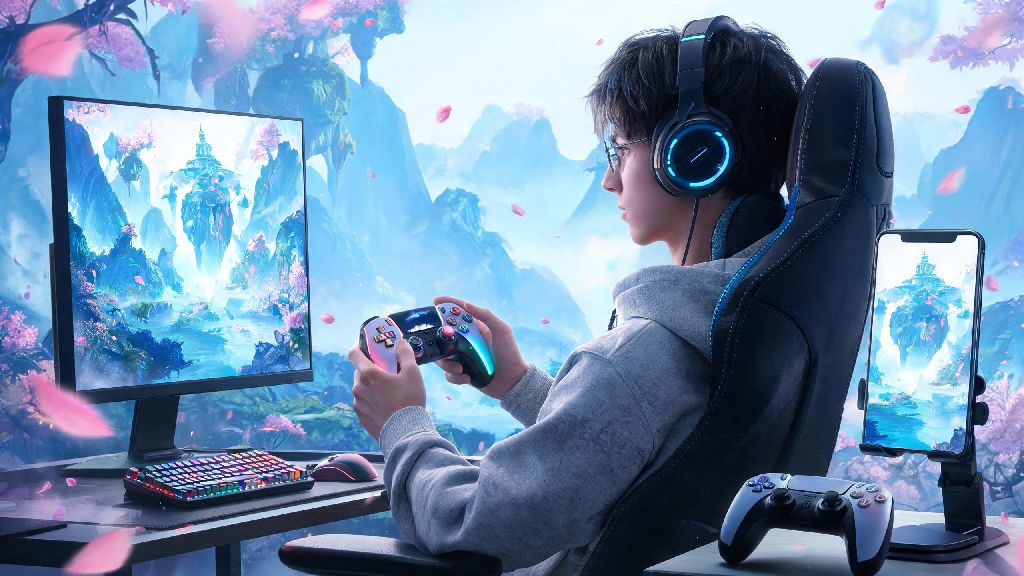
If you’ve spent hours grinding for new Resonators or exploring the lush open world of Jinzhou, you’ve probably wondered if you can trade your stiff keyboard and mouse setup for something more comfortable. The short answer to can you use a controller for Wuthering Waves is yes, but there are a few caveats depending on what platform you play on, what controller you own, and what type of gameplay you prefer. I’ve tested controller play across PC, mobile, and even cloud versions of the game over the past three months, so I’ll walk you through exactly what works, what doesn’t, and how to get the best possible experience if you choose to play with a gamepad.
Can You Use a Controller for Wuthering Waves Across All Platforms?
First, it’s important to note that support varies slightly across different versions of the game, but most popular platforms have built-in compatibility these days. Native controller support on PC is the most polished, as the game was built to work with Xinput-compatible controllers right out of the box. That means all official Xbox controllers, most recent PlayStation controllers, and popular third-party options like the 8BitDo Pro 2 will work without any extra software needed.
For mobile players, support is a bit more hit or miss, but most modern devices work well as long as you have the right hardware. MFi certified controllers for iOS will connect seamlessly without extra apps, and most bluetooth-enabled Android controllers will also work as long as your device runs Android 10 or newer. Cloud gaming platforms that host Wuthering Waves also generally support controllers, but you’ll want to check your specific platform’s guidelines to confirm compatibility.
There are a few exceptions, of course. Cheap no-name controllers that don’t use standard Xinput or MFi protocols often won’t be detected by the game, even if they work with other titles on your device. I once spent 20 minutes trying to pair a generic $15 controller to the game before realizing it didn’t have proper Xinput support, so save yourself the headache and stick to reputable brands if you’re buying a controller specifically for this game.
Step-by-Step Controller Setup for Wuthering Waves
Setting up your controller is pretty straightforward, but following these steps will help you avoid common detection issues and get the most comfortable experience right away. For PC players, the process only takes a couple of minutes:
For mobile players, the process is almost identical, but you’ll want to make sure your controller is paired to your device via Bluetooth before you open the game. If the game doesn’t detect your controller right away, close the app completely, re-pair your controller, and launch the game again. Adjust dead zones first if you notice your character or camera drifting on its own; most default dead zone settings are a little too high for precise movement, so lowering them slightly will make exploration feel much more responsive.
You don’t need to use any third-party mapping software to get your controller working, even if you want to change default button layouts. The game has a full custom mapping feature built in, so you can assign every button, trigger, and stick press to whatever action you want without downloading extra tools.
Pros and Cons of Using a Controller for Wuthering Waves
Just because controller support exists doesn’t mean it’s the right choice for every player. I switch between controller and mouse and keyboard depending on what I’m doing in the game, so I’ve got a good sense of where controller play shines and where it falls short.
The biggest benefit of using a controller is comfort. If you’re planning to play for 2+ hours exploring the open world or doing casual farming runs, holding a controller is far less straining on your wrists and shoulders than hunching over a keyboard and mouse. Better for close-quarters combat is another big plus; dodging, parrying, and chaining combo attacks feel much more intuitive with analog sticks and shoulder buttons than they do with keyboard keys. It’s also perfect if you want to play from your couch using a TV connected to your PC or gaming laptop.
There are some downsides, though. The most obvious one is that precise aiming is much harder with a controller than with a mouse. If you main a ranged Resonator that relies on targeted shots, you’ll probably miss more shots and deal less damage than you would with a mouse and keyboard. Slower character swapping for high-level play is another issue; keyboard players can swap between four Resonators with a single key press each, while controller players have to use a combination of a shoulder button and face button, which adds a small delay that can matter in tight abyss runs or high-difficulty boss fights.
For most casual players, the pros far outweigh the cons. If you’re not trying to climb the leaderboards or clear the highest difficulty abyss floors first try, controller play will make your time with the game far more enjoyable. If you are a competitive player, you can still use a controller for casual exploration and swap to mouse and keyboard for difficult content, like I do.
Common Controller Issues and How to Fix Them
Even with native support, you might run into small issues when using a controller for Wuthering Waves. Most of these are easy to fix with a few quick tweaks, so you don’t have to go back to mouse and keyboard if you don’t want to.
The most common issue is the game not detecting your controller at all. If this happens, first make sure your controller is charged or connected properly, then close the game completely and re-launch it. If you’re playing the Steam version of the game, enabling Steam Input in the game’s Steam settings will usually fix detection issues for non-Xbox controllers. You can also try updating your controller’s firmware if it’s been a while since you last checked for updates.
Input lag is another common complaint, especially for players using wireless controllers. If you notice a delay between pressing a button and the action happening in game, first make sure there are no other Bluetooth devices connected to your device that might be causing interference. Switching to a wired connection will almost completely eliminate input lag if you’re playing high-difficulty content. Avoid third-party mapping tools too, as these often add extra input delay and can even trigger the game’s anti-cheat system if they’re detected as unauthorized software.
If your button mappings keep resetting every time you launch the game, make sure you’re saving your changes before exiting the settings menu, and that you don’t have multiple controllers paired to your device at the same time. The game will default to the last detected controller’s settings, so if you swap between different controllers often, you’ll want to save separate layout profiles for each one.
At the end of the day, whether you can use a controller for Wuthering Waves comes down to your personal preferences and play goals. Casual players who prioritize comfort over top-tier competitive performance will love how intuitive and relaxing controller play feels, while competitive players might prefer to stick to mouse and keyboard for high-difficulty content. No matter what you choose, following the setup steps and troubleshooting tips above will help you get the smoothest possible experience so you can focus on exploring Jinzhou and collecting all your favorite Resonators.