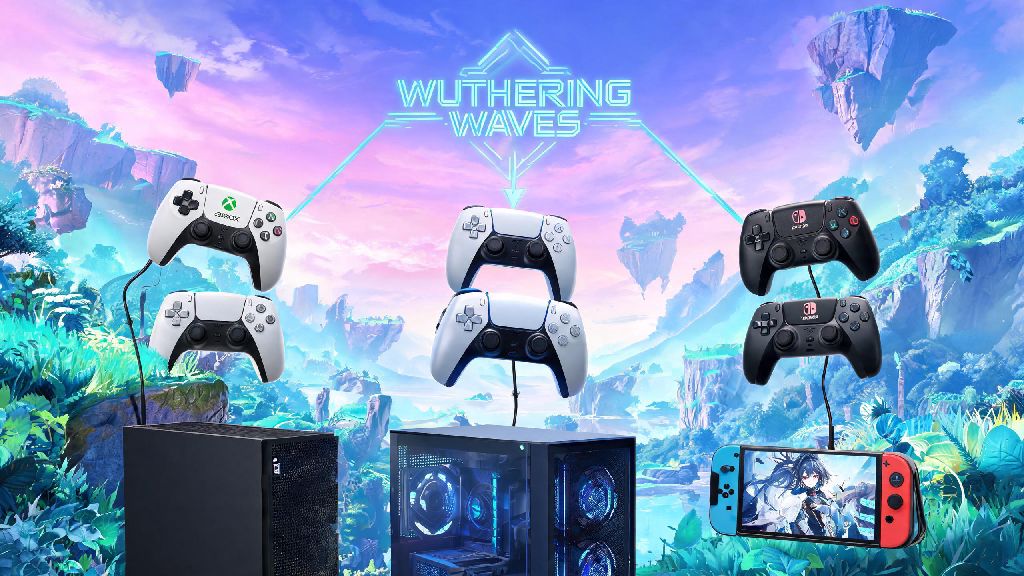
If you’re tired of fumbling with touch controls on mobile or prefer the tactile feel of analog sticks for open-world exploration, you’ve probably asked: can you use controller on Wuthering Waves? Kuro Game’s hit open-world ARPG has expanded to PC, mobile, and console since launch, so input compatibility is a top question for players who want to customize their playstyle to match their preferences. In this guide, we’ll break down exactly what controllers work, how to set them up, and common fixes for input issues you might run into.
What Controllers Are Officially Supported for Wuthering Waves?
The good news is that Wuthering Waves has native controller support for most major branded controllers across all supported platforms. First-party Sony and Xbox controllers work seamlessly across PC, mobile, and their respective console versions, with full haptic feedback and adaptive trigger support for PS5 controllers on PC and PS5. Switch Pro controllers are also supported natively on PC and mobile, no extra software required to get them working.
Third-party controllers from reputable brands like 8BitDo, PowerA, and Razer also work for most players, as long as they follow standard XInput or DirectInput protocols. Official controller support is available across all platforms except some older Android devices with outdated OS versions, so if you’re using a phone or tablet from before 2020, you may want to double check your OS version before buying a controller for mobile play. Generic no-name controllers may require extra mapping software to work, but we don’t recommend those for consistent gameplay.
How to Set Up When You Can Use Controller on Wuthering Waves
Setting up your controller for Wuthering Waves takes less than five minutes for most supported devices, with slightly different steps per platform. For PC players, you can either plug your controller in via USB or pair it through Bluetooth, then launch the game. It should detect your controller automatically, but if not, just head to the settings menu, select the controls tab, and toggle controller input on. For mobile players, pair your controller to your device via Bluetooth first, then launch the game, and it will switch to controller input immediately. Console players don’t have to do any extra setup, as the console’s native controller is detected automatically when you launch the game.
You can remap every controller button in the in-game settings to match your preferred layout, whether you like to swap dodge and jump or assign resonance skills to shoulder buttons for faster access. Many players like to switch between more intense open-world gameplay and casual titles to avoid burnout during long play sessions. If you’re waiting for your resin to refill or taking a break after a tough boss fight, you can switch to lighter casual games to pass the time without straining your hands too much. Casual players who prefer controller input for all their gaming often use the same controller to play Rummy Grand, a laid-back card game that works perfectly with controller inputs for relaxed, low-stakes play.
Common Controller Issues in Wuthering Waves and How to Fix Them
Even with native support, you might run into small controller issues every now and then, most of which have simple fixes. The most common issue is input lag, which usually happens when you’re using a Bluetooth connection with multiple other devices nearby. The fix is simple: switch to a wired USB connection, or move other Bluetooth devices like speakers or headphones away from your play area to reduce interference.
Stick drift is another common issue, but it’s rarely a problem with the game itself. You can fix most minor drift by adjusting the analog stick dead zone in the Wuthering Waves control settings, usually raising it by 5-10% is enough to stop unintended movement. If your controller isn’t detected at all on PC, try launching the game through Steam and enabling controller support for your device type in the Steam controller settings menu. Never install untrusted third-party input mappers as these can violate the game’s terms of service and lead to a temporary or permanent account ban.
For mobile players, if your controller stops working mid-session, try unpairing and re-pairing it to your device, then restart the game. This usually fixes connection issues that pop up after you receive a phone call or switch to another app for a few minutes.
Is Playing Wuthering Waves With a Controller Better Than Keyboard/Mouse or Touch?
There’s no right answer to this question, as it all comes down to your personal playstyle and what content you’re engaging with. Controllers are far more comfortable for long exploration sessions, as you can lean back and play without hunching over a keyboard or holding your phone for hours. They also feel much more natural for platforming sections and melee combat, where you rely on smooth analog movement to dodge attacks and line up combos.
That said, keyboard and mouse is still the better option for high-skill content like high-level abyss floors or raid bosses, especially if you play ranged characters. Mouse aim is far more precise than analog stick aim, and keyboard shortcuts let you cast skills and swap characters much faster than you can with a controller. Touch controls work well for short casual sessions when you’re on the go, but they’re not ideal for long play sessions or hard content, as they lack the tactile feedback of physical inputs.
The best input method comes down to your personal preference and what content you’re playing — you don’t have to stick to one method forever either. You can switch between input methods at any time without restarting the game, so you can use a controller for casual exploration and swap to keyboard and mouse if you’re tackling a hard boss fight that requires faster, more precise inputs.
At the end of the day, the answer to can you use controller on Wuthering Waves is a resounding yes, with official support for most popular controller models across all platforms. Whether you prefer the casual comfort of a controller for long exploration sessions or stick to keyboard and mouse for high-stakes combat, the game’s flexible input options let you play exactly how you want. If you run into any setup issues, follow the troubleshooting steps we outlined above, and you’ll be exploring the world of Jinzhou with your preferred controller in no time.