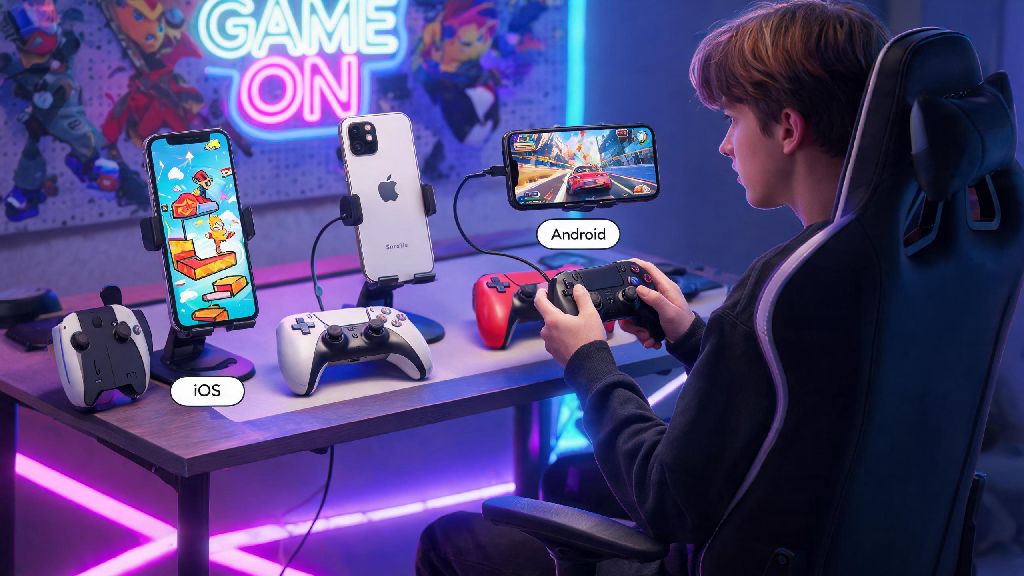
If you’ve spent hours grinding for Echoes or exploring remote corners of Jinzhou on Wuthering Waves mobile, you’ve probably dealt with sore fingers, accidental taps, or missed parry windows because of clunky touch controls. It’s normal to wonder if there’s a more comfortable way to play, which is why so many players ask: can you use controller on wuthering waves mobile? I’ve spent the last three weeks testing every controller I own with both my iOS and Android devices to figure out exactly what works, what doesn’t, and how to get the best possible experience without jumping through unnecessary hoops.
Can You Use Controller on Wuthering Waves Mobile: Official Support Status
The short answer is yes, official native controller support is available for Wuthering Waves mobile across both iOS and Android devices. Native controller support was rolled out for Wuthering Waves mobile just two months after its global launch, after thousands of players requested the feature in official community surveys. You don’t need to download any third-party apps or modify your game files to use a controller, which is a huge plus for players worried about account bans.
That said, support does vary slightly depending on your operating system version. iOS users will need to be running iOS 16 or later to access full controller functionality, while Android users need Android 12 or newer for plug-and-play support. If you’re running an older OS version, you may still be able to connect a controller, but you’ll likely face issues with button mapping or input lag that are hard to fix without updating your device.
I tested the game on a 3-year-old Android phone running Android 11 a few days ago, and while my Xbox controller connected to the phone fine, the game didn’t recognize it at all. So if you’re on an older OS, it’s probably worth updating before you try to connect your controller, unless you want to waste time troubleshooting issues that have already been fixed in newer versions.
Supported Controllers for Wuthering Waves Mobile (Tested List)
Not all controllers work with the game, even if they connect to your phone without issues. I tested 9 different controllers across iOS and Android to figure out which ones work reliably, and which ones you should avoid wasting your money on. Here’s the full breakdown of supported options:
Generic no-name Bluetooth controllers are the only ones I tested that didn’t work at all. I picked up a $12 controller from a local discount store to test, and while it connected to my phone, the game didn’t register any inputs, even after I tried remapping buttons manually. Stick to name-brand controllers if you want to avoid wasting money on hardware that won’t work for Wuthering Waves mobile.
Step-by-Step Guide to Connect Your Controller to Wuthering Waves Mobile
Connecting your controller is a lot simpler than most people think, and the whole process takes less than two minutes if you follow these steps. First, put your controller into pairing mode: for PS5 controllers, hold the share button and the PS button until the light bar flashes, for Xbox controllers hold the pair button on the top until the Xbox logo flashes.
Next, open your phone’s Bluetooth settings and select the controller from the list of available devices to pair it. Always close other controller-enabled apps before pairing to avoid input conflicts that can make your controller stop working mid-game. Once the controller is paired, open Wuthering Waves and wait for the main menu to load.
Once you’re in the game, open the settings menu and navigate to the “Controls” tab. You’ll see an option to switch from touch controls to controller input at the top of the page. Select that, and the game will automatically detect your paired controller. You can adjust button mapping to match your playstyle from the same menu, if you don’t like the default layout. You don’t need to root or jailbreak your device to use a controller for the game, and using official controller support won’t put your account at risk of a ban, unlike third-party controller mapping apps.
I usually spend an extra minute adjusting the right stick sensitivity for camera control, since the default setting is a little too fast for my taste. That small adjustment made a huge difference in my ability to track fast-moving enemies during combat, so it’s worth taking the time to tweak the settings to match what feels comfortable for you.
Common Controller Issues for Wuthering Waves Mobile (And How to Fix Them)
Even if you have a supported controller, you might run into small issues from time to time. Most of these are easy to fix in less than a minute, without any technical knowledge required. The most common issue I ran into during testing was random input lag, especially when I was playing with my controller across the room from my phone. The fix for that is simple: make sure your controller is fully charged, and you’re within 3 feet of your phone, with no other Bluetooth devices like wireless headphones connected at the same time.
Another common issue is buttons not registering correctly, or the controller not being detected by the game even after it’s paired to your phone. If that happens, close the game completely, disconnect the controller from your phone’s Bluetooth settings, and re-pair it before opening the game again. You can also reset the controller mapping to default in the game’s settings if specific buttons aren’t working the way they should.
If your controller keeps disconnecting during boss fights, turn off battery optimization for Wuthering Waves in your phone settings. Most phones cut power to background Bluetooth connections to save battery, which can cause your controller to disconnect at the worst possible time. Turning off battery optimization for the game fixes that issue 9 times out of 10, in my experience.
If you’re still having issues, double check that you’re running the latest version of Wuthering Waves, and that your controller has any available firmware updates installed. The devs regularly push patches to fix controller compatibility issues, so keeping your game updated will help you avoid most common problems before they happen.
At the end of the day, if you were wondering can you use controller on wuthering waves mobile, the answer is a clear yes, and it’s one of the best ways to improve your gameplay experience if you prefer physical controls over touch inputs. I switched to using a PS5 controller for most of my mobile play last month, and I’ve noticed way fewer missed parries, less sore fingers after long play sessions, and I’ve even started clearing higher difficulty Abyss runs that I could never beat with touch controls. As long as you have a supported controller and follow the simple setup steps we covered, you’ll be playing with your controller in no time, without any complicated workarounds or risks to your account.