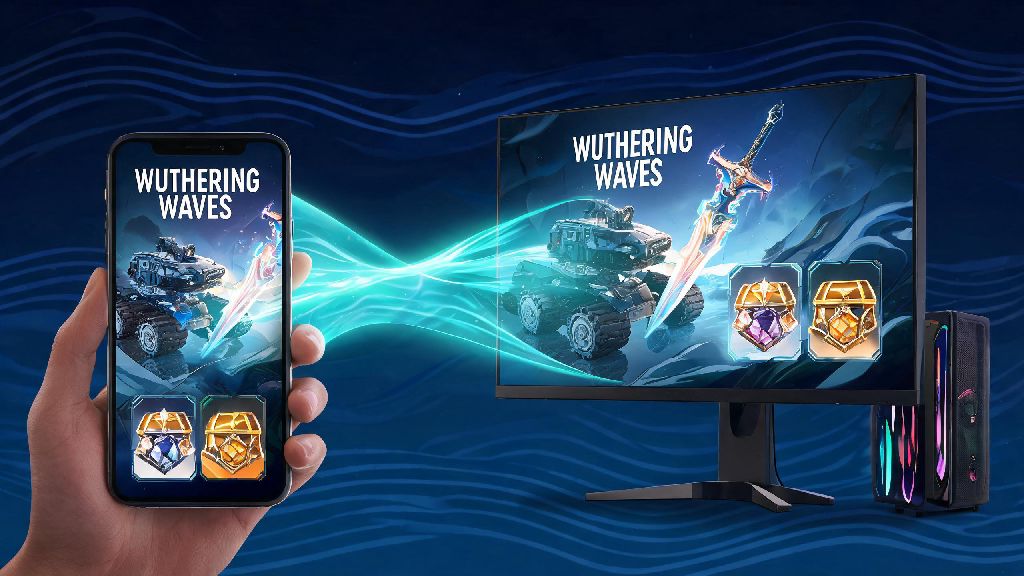
If you’ve jumped into Wuthering Waves’ massive 2026 summer content update that dropped last month, you’ve probably wondered how to link Wuthering Waves account across devices so you don’t lose your hard-earned rovers, limited weapon pulls, and exclusive event rewards. I ran into this exact issue last week when I switched from playing on my phone during my commute to my new gaming PC at home, and almost lost access to my 5-star Jiyan I’d spent 80 pulls on. This guide walks you through every step, common pitfalls to avoid, and what to do if you run into linking errors that leave your progress stuck.
Pre-Requisites Before You Learn How to Link Wuthering Waves Account
You don’t want to get halfway through the linking process and hit a wall because you missed a small but important requirement. I made this mistake the first time I tried linking, and had to wait 24 hours for support to unlock my account because I used an email that was already tied to a throwaway profile I made during the 2025 closed beta. Make sure you have all of these ready before you start:
Step-by-Step Process to Link Your Account Across All Devices
The linking process itself only takes 2 to 3 minutes if you have all your pre-requisites sorted. Start by opening Wuthering Waves on the device that has all of your main progress saved first – this is the account you want to sync across all other platforms. Navigate to the settings menu by tapping the gear icon in the top right corner of the home screen, then select the “Account” tab from the left sidebar. You’ll see a “Link Account” button near the bottom of the page, tap that to pull up the list of available platforms you can link to.
Select the platform you want to link, then follow the prompts to log into that account and enter the verification code that gets sent to your email or phone. If you don’t get the code within 2 minutes, check your spam or junk folder, because many email providers mark automatic game verification messages as spam by default. Never share your verification code with anyone, even if they claim to be Wuthering Waves support – the official team will never ask for that information directly.
If you’re linking to a PlayStation or Xbox console, the process is slightly different. Instead of entering a code manually, you’ll need to scan a QR code that pops up on your console screen with your mobile device to confirm the link. That’s a new feature added in the 2026 winter update, so it’s much faster than the old manual code entry method for console users. Once you confirm the link, just log into Wuthering Waves on your other device using the linked platform, and all your progress will load automatically. If you’re not sure which platform to use when you link Wuthering Waves account, we recommend using an email address that you have permanent access to, instead of a social media account you might delete later.
Common Linking Errors and How to Fix Them in 2026
Even if you follow all the steps correctly, you might run into a few common errors that stop the linking process from working. The most frequent one I see posted on community forums right now is the “This account is already linked to another profile” error. This almost always happens if you used that email or social account for a beta or throwaway account in the past. You can either use a different platform to link, or submit a support request to unlink the old profile from that account. You can only unlink an account once every 180 days, so make sure you’re sure before you make the request, because you won’t be able to change it again for six months.
Another common error is “Progress not syncing after linking”. This usually happens if you have an older version of the game installed, or if you logged into the wrong server region on your second device. Make sure all devices are on the same server (NA, EU, AP, etc.) and have the latest 2026 update installed, then restart the game. I had this issue when I first linked my account, because I accidentally selected the EU server on my PC instead of the NA server I use on mobile, so my progress didn’t show up until I switched servers.
If you run into an error that’s not covered here, you can find the latest troubleshooting guides on the official Wuthering Waves support portal, which is updated weekly in 2026 with solutions to new issues that pop up after content updates. One thing to keep in mind when you link Wuthering Waves account is that you can’t merge two separate existing accounts, so make sure you’re linking the account with all your main progress to the platforms you want to use, not the other way around.
What to Do After Linking Your Wuthering Waves Account
Once the linking process is complete, there are a few quick checks you should do to make sure everything is working correctly. First, log into all your devices to confirm that all your progress, pulls, purchases, and event rewards are synced correctly. Make sure to check your limited event currency and time-limited items first, since those are the most likely to have sync issues if something went wrong during the linking process. If anything is missing, log out of all devices and log back in again, and most of the time the missing items will load.
If everything looks right, you can turn on auto-sync in the account settings, so any progress you make on one device will automatically update across all your linked devices within 30 seconds. You can also set up two-factor authentication for your linked account to add an extra layer of security, which is highly recommended if you’ve spent money on in-game purchases. I added two-factor authentication after I linked my account, and it only took 30 seconds to set up with my authenticator app.
Once you link Wuthering Waves account, you’ll also get access to cross-platform friend invites, so you can play with your friends no matter what device they’re using. You can also opt in to cross-platform leaderboards if you want to compete with players across all devices for the highest scores in the new 2026 roguelike game mode.
Once you know how to link Wuthering Waves account properly, you can jump between your phone, PC, and console whenever you want without worrying about losing hours of progress or limited event rewards. I’ve been using cross-save for three weeks now, and it’s made playing during my lunch break and then picking up where I left off at home so much easier than having to maintain two separate profiles. Just follow the pre-requisites, take your time through the steps, and don’t hesitate to reach out to support if you run into any issues that you can’t fix on your own.