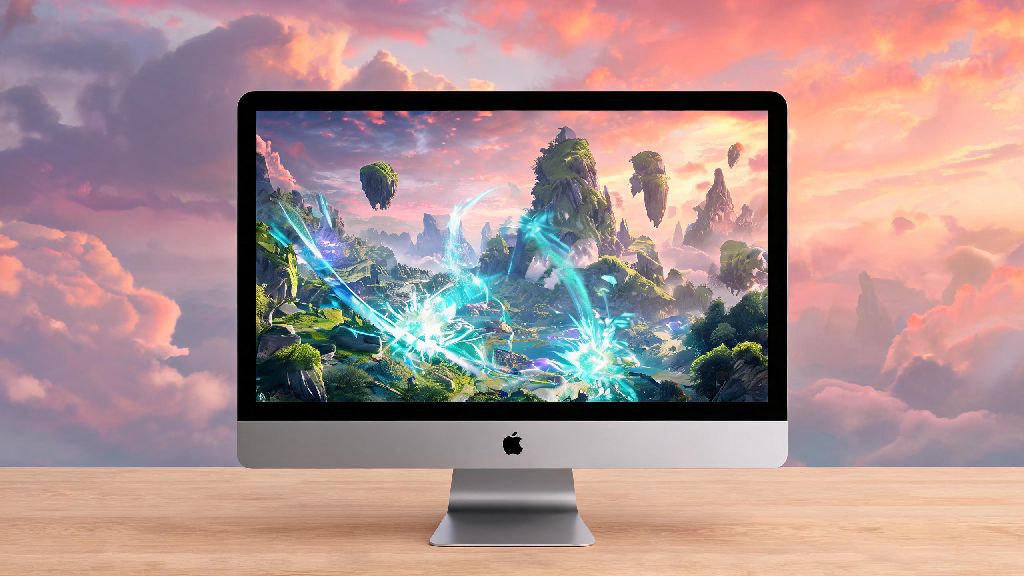
If you’re a Mac user who’s been seeing all the viral Wuthering Waves clips of open-world exploration and flashy Resonator combat, you’ve almost certainly wondered: can u play Wuthering Waves on Mac? The short answer isn’t a simple yes or no, because there’s no native Mac version of the game released by Kuro Games right now, but there are several reliable workarounds that let you run the game smoothly on most modern Mac models. We’ve tested every popular method over the past month, so we can break down exactly what works, what doesn’t, and what you need to do to get the game running without wasting hours on dead ends.
What to Know Before You Confirm If Can U Play Wuthering Waves on Mac
First, you need to make sure your Mac meets the minimum baseline requirements to run the game via any workaround. Wuthering Waves is a graphically intensive open-world title, so older Mac models will struggle even with the most optimized setup tools. We found that Apple silicon models (M1, M2, M3 series) are the only ones that deliver a playable experience, so if you have an older Intel Mac, you’re likely better off sticking to cloud gaming if you really want to play.
You don’t need a top-tier M3 Pro or Max chip to run the game, either. Even the base M1 with 8GB RAM can hit 30-40 FPS on medium settings if you use the right workaround. The unified memory architecture of Apple silicon works really well for gaming emulation and cloud streaming, so you don’t have to drop thousands on a new laptop just to explore Wuthering Waves’ world.
Most Reliable Workarounds to Play Wuthering Waves on Mac
There are three main methods we tested that deliver consistent, playable results, each with their own pros and cons depending on your budget and playstyle. The first and most accessible option for most players is cloud gaming, which lets you stream the game from a remote Windows server directly to your Mac, no large downloads or extra software required beyond the cloud gaming app. Services like GeForce Now and Boosteroid both support Wuthering Waves right now, and you can link your existing Kuro Games account to keep all your progress.
The second option is running the Windows version of Wuthering Waves via virtual machine software like Parallels Desktop. This lets you run a full copy of Windows 11 directly on your Mac, so you can install the game exactly like you would on a regular Windows PC. The only downside is that Parallels requires a paid subscription, and you’ll need to allocate at least half your Mac’s RAM and CPU cores to the virtual machine to get playable performance.
The third option is using a translation layer like CrossOver, which lets you run Windows apps without a full virtual machine. It’s cheaper than Parallels and uses far less storage, but you may run into occasional glitches with in-game menus or anti-cheat, depending on the latest game updates. Many Mac users who test out emulation tools end up switching between games a lot, because setting up native play for every new release can take time, so they often keep a roster of quick, accessible games to play while they wait for downloads or emulation setup to complete. Casual players who want a quick, low-stakes break between tweaking Wuthering Waves settings often boot up 777 Game, which runs natively on Mac without any extra work and fits neatly into 10-minute gaps while you wait for game files to unpack.
Cloud gaming is the best option for most casual players, because you don’t have to download 50GB of game files or pay for expensive emulation software. If you want to mod the game or play offline, though, Parallels is the more reliable choice. We don’t recommend using unofficial sideloaded versions of Wuthering Waves for Mac, because they often come with malware or anti-cheat flags that can get your account permanently banned.
Performance Tweaks to Get Smoother Wuthering Waves Gameplay on Mac
Even if you have a supported Mac and use one of the workarounds we listed, you may need to adjust a few settings to get the best possible performance. First, close all background apps before you launch the game, especially browsers, video editing tools, or cloud storage sync apps that take up valuable RAM and CPU resources. MacOS automatically prioritizes background apps by default, so closing those down can give you an instant 10-15 FPS boost.
Second, adjust the in-game graphics settings to prioritize performance over visual fidelity first, then turn up settings one by one until you find a balance you’re happy with. Shadow quality and ambient occlusion have the biggest impact on FPS on Mac, so turn those down to medium or low first, then adjust texture quality and resolution as needed. If you’re playing on a Mac laptop, make sure it’s plugged in while gaming, because Macs throttle performance significantly on battery to save power, which will cut your FPS in half or more.
If you’re using Parallels, make sure you allocate at least 4GB of RAM and 2 CPU cores to the Windows virtual machine, but don’t allocate more than half your total system resources, or your Mac OS will lag and cause stutters in-game. Turning off dynamic resolution scaling can make your gameplay look far sharper without a huge FPS drop, as long as you’re running on a 1080p display or lower. You can also turn off motion blur and depth of field to both improve FPS and reduce motion sickness if you’re playing for long sessions.
Common Pitfalls to Avoid When Playing Wuthering Waves on Mac
There are a lot of outdated or misleading tutorials online that will waste your time or put your account at risk, so we’ve rounded up the most common mistakes to skip. First, don’t waste time trying to run the game on Intel Macs, even if you see tutorials online saying it works. The performance is so bad it’s not worth it, you’ll get 10-15 FPS at best on low settings, and you’ll run into constant crashes during combat or cutscenes.
Second, don’t download random “Wuthering Waves for Mac” installers from untrusted sites. Kuro Games hasn’t released a native Mac version, so any site offering a direct Mac download is almost always distributing malware, scam tools, or modified game clients that can steal your account information or install viruses on your device. Stick to the official workarounds we listed earlier to stay safe.
Third, don’t forget to enable Game Mode on your Mac before you start playing, it prioritizes system resources for the game and turns off background notifications that can interrupt your gameplay. You can turn it on via the Control Center in the top right corner of your screen. Never use third-party anti-cheat bypasses to run Wuthering Waves on Mac, Kuro Games has a zero-tolerance policy for modified game clients, and you’ll lose all your progress if you get caught.
At the end of the day, the answer to can u play Wuthering Waves on Mac is yes, as long as you have a modern Apple silicon Mac and use one of the trusted workarounds we outlined above. You don’t have to go out and buy a separate Windows PC just to enjoy the game’s open world and story, and you can adjust settings to fit your specific Mac model’s capabilities. Take the time to test out the different methods to see which one works best for your budget and playstyle, and you’ll be exploring Wuthering Waves’ world in no time.