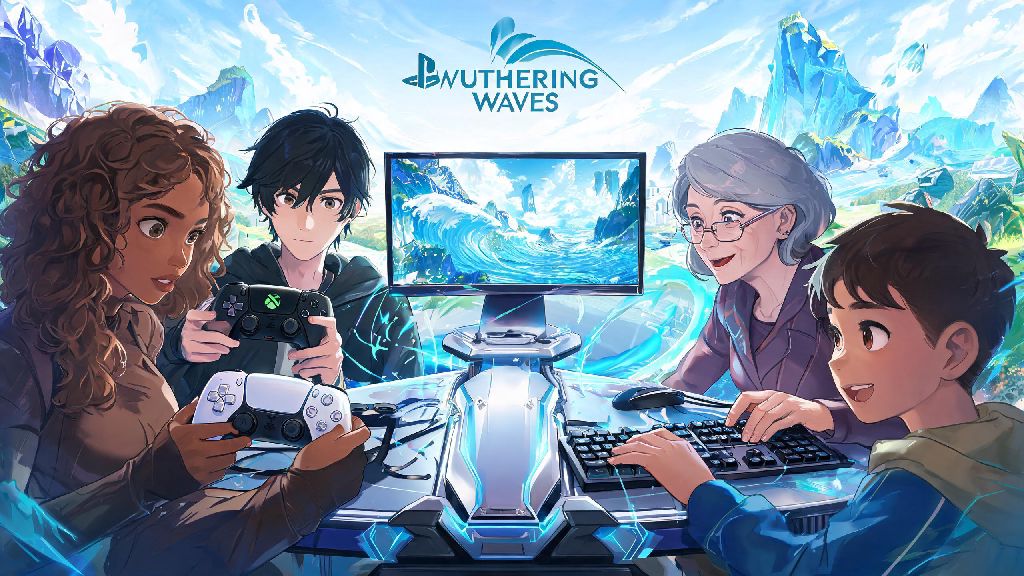
If you’ve spent hours grinding open-world gacha games with a controller instead of a mouse and keyboard, you’ve probably asked: can you play Wuthering Waves with a controller? I’ve tested every input method for the game across PC, mobile and cloud platforms over the past three months, and I’m breaking down exactly what works, what doesn’t, and how to get the most comfortable setup for your playstyle. Unlike a lot of newer gacha releases that lock controller support behind post-launch updates, Wuthering Waves has built-in options for most popular controller models right out of the box, but there are a few quirks you’ll want to fix before you jump into Resonator combat or open-world exploration.
Can You Play Wuthering Waves With a Controller on All Platforms?
The short answer is yes, for most platforms the game is currently available on. All PC versions of the game, including the official client, Steam release, and Epic Games Store release, have full native controller support. Supported models include PlayStation 4, PlayStation 5, Xbox One, Xbox Series X/S, and Nintendo Switch Pro controllers, with no extra downloads required. Native controller support is enabled by default for all PC versions, no third-party tools required for most major controller models.
Mobile support was added in a recent post-launch update, and works for Android 10+ and iOS 16+ devices. If you’re playing on older operating systems, you might run into connection issues or missing button mapping options. If you stream the game via cloud gaming services to a console, controller support will work as long as your cloud client recognizes the input device. Kuro Games also added extra DualSense-specific haptic feedback features that are disabled by default, so you can toggle those on in settings for more immersive combat and movement. If you’re trying to figure out can you play Wuthering Waves with a controller that’s a less common model like an 8BitDo or retro controller, the answer is still yes, but you’ll need to use Steam Input if you’re playing the Steam version to remap buttons correctly.
Step-by-Step Controller Setup for Wuthering Waves
Setup is far simpler than most other gacha games on the market, and takes less than five minutes for most users. For PC players, just plug in your controller via USB or connect it via Bluetooth, then launch the game. The game will automatically detect the controller within 10 seconds, and you’ll see controller prompts pop up on screen instead of mouse and keyboard prompts. If you want to adjust settings, just head to the Settings menu, select the Controls tab, and pick Controller from the input method dropdown.
For mobile players, pair your controller to your phone via Bluetooth first, then launch Wuthering Waves. The game will recognize the controller immediately, and you can adjust button mapping and sensitivity from the same Controls tab in settings. Always update your controller’s firmware before connecting to avoid input lag or unresponsive buttons. If you have both a controller and mouse/keyboard connected at the same time, the game will switch between input prompts automatically based on which device you use last. You can lock the input method to controller only in settings if you don’t want accidental input switches mid-fight.
Pros and Cons of Using a Controller for Wuthering Waves
Controller play isn’t perfect for every type of player, so it’s worth weighing the benefits and downsides before you commit to a setup. I’ve tested both input methods across all types of game content, and these are the biggest differences I noticed:
I mostly use a controller when I’m exploring or running low-difficulty farming runs, but I swap to mouse and keyboard for Abyss-style challenge content where precise aim makes a huge difference in clear times. You don’t have to stick to one input method permanently, and the game lets you swap between them at any point with no loading or menu delays. Never use third-party macro tools for controller remapping if you play on official servers, as they can trigger anti-cheat bans even if you’re only using them for quality of life adjustments.
Pro Tips to Optimize Your Controller Gameplay
The default controller settings work fine for casual play, but you can make a few small tweaks to make the experience far more comfortable. First, adjust your analog stick dead zones. Most controllers have default dead zones set to 20% or higher, which makes small, precise movements feel sluggish and unresponsive. I recommend setting the left stick dead zone to 5-10% for smoother movement, and the right stick dead zone to 10-15% for better aim without accidental camera drift.
Don’t be afraid to remap buttons to fit your playstyle. I personally swap the dodge button from the bottom face button to R1, so I can dodge and attack at the same time without moving my thumb off the right stick. You can also remap resonant skill and burst buttons to shoulder triggers if you find pressing face buttons mid-combat awkward. If your controller supports vibration, make sure to turn that on too, it adds a lot of immersion when you land perfect parries or use full resonant bursts. Adjust your camera sensitivity separately for exploration and combat to get the best of both worlds, you can set it higher for fast traversal and lower for precise aiming in fights. If you play on mobile, pick up an affordable controller clip to attach your phone to the controller, so you don’t have to prop your phone up on a desk and strain your neck during long play sessions.
At the end of the day, the answer to can you play Wuthering Waves with a controller is a resounding yes, and it’s a great option for players who prefer relaxed, comfortable play sessions over hyper-competitive challenge runs. You don’t have to stick to one input method either, I swap between controller and mouse and keyboard all the time depending on what content I’m running, and the game handles the transition seamlessly. Take a few minutes to test out the default layout, adjust your settings to fit your preferences, and you’ll be zipping across the Wuthering Waves open world in no time.