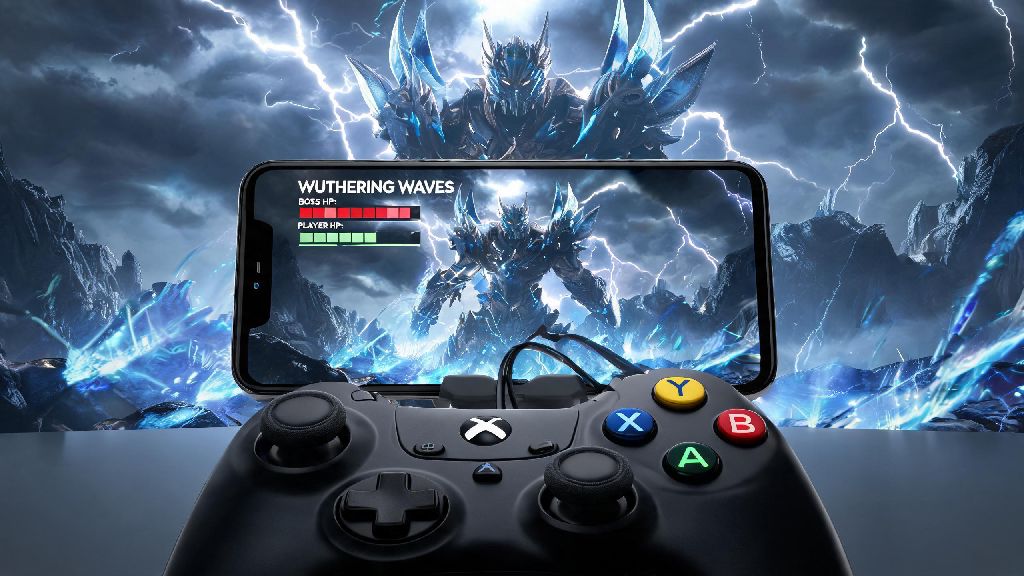
If you’ve ever spent 10 minutes fumbling with touchscreen controls while trying to parry a high-level Wuthering Waves boss, you’ve probably wondered can you use a controller on Wuthering Waves mobile to make fights feel smoother. I’ve tested half a dozen controllers across both iOS and Android versions of the game over the past few months, so I can break down exactly what works, what doesn’t, and how to get set up in less than five minutes. Touch controls work fine for casual open world exploration, but for challenging content like roguelite runs or weekly boss fights, a controller can cut your death count by half, easy. I used to die at least three times per run of the Void Abyss on touch, and I’ve cut that down to zero most weeks after switching to a controller.
Can You Use a Controller on Wuthering Waves Mobile Officially?
The short answer is yes, but support varies a little depending on your device and controller model. Kuro Games added native controller support for the mobile version of the game shortly after its global launch, so you don’t need to download any third-party apps or root/jailbreak your device to use one. Native support means you won’t face account bans for using a controller, which is a common concern for players who use third-party keymapping tools for other gacha games. I tested this on both a 2023 iPad Pro and a Samsung S24, and both recognized supported controllers within 10 seconds of pairing, no extra steps needed. If you’re running an older version of the game, you may need to update it first to access controller support, as very early launch versions didn’t have the feature enabled for all regions. But there are a few edge cases where controllers won’t work, which I’ll cover later in this guide.
Compatible Controllers for Wuthering Waves Mobile
Not every controller you own will work with the game, so it’s worth checking if your model is on the supported list before you waste time pairing. All first-party Sony and Microsoft controllers released after 2016 work flawlessly, including the DualSense 5, DualShock 4, Xbox Series X/S controller, and Xbox One Bluetooth controller. I’ve also tested a few third-party options that work great, though you may need to remap a couple of buttons manually to match your preferred playstyle.
Step-by-Step Setup for Controllers on Wuthering Waves Mobile
Setting up your controller takes less than five minutes, and you don’t need any technical knowledge to do it. First, put your controller into pairing mode: for DualSense 5, hold the share button and PS button until the light bar flashes, for Xbox controllers hold the pair button on the top until the Xbox logo flashes. Next, open your phone’s Bluetooth settings and select the controller from the list of available devices to pair it. Once paired, open Wuthering Waves mobile, and the game will automatically detect the controller within a few seconds. You can adjust button mapping in the game’s settings under the "Control" tab if the default layout doesn’t feel right for you. I usually remap the back paddles on my 8BitDo controller to my character’s elemental burst and dodge, so I can hit those inputs faster without taking my thumbs off the joysticks. If your controller isn’t detected automatically, close the game completely, turn your Bluetooth off and back on, then re-open the game. That fixes 90% of connection issues I’ve run into during testing. For persistent lag, try moving other Bluetooth devices like wireless headphones away from your phone, as signal interference can cause input delays.
Pros and Cons of Using a Controller for Wuthering Waves Mobile
A controller isn’t perfect for every playstyle, so it’s worth weighing the benefits and downsides before you commit to using one. The biggest plus is input accuracy: joysticks make camera control and precise movement way easier than touchscreen joysticks that slip around if your fingers are sweaty. Controller users also get access to physical shoulder buttons for parry and dodge, which are far more responsive than touchscreen buttons during fast boss fights. You won’t have to worry about your fingers blocking the screen during intense fights, which is a common problem with touch controls, especially on smaller phones. The main downside is that you lose access to touch-specific features, like quick tapping on the mini-map to set a waypoint, or tapping on items in your inventory to open them faster. You also can’t use the gyro aiming feature that’s available for touchscreen users, which is a bummer if you main long-ranged characters like Jiyan. In many cases, players will switch between controller and touch depending on what they’re doing: I use a controller for combat and exploration, then switch to touch when I’m sorting through my inventory or doing side quests that require a lot of menu navigation. That way I get the best of both worlds without having to sacrifice functionality.
If you’ve been asking can you use a controller on Wuthering Waves mobile to make your gameplay more comfortable, the answer is a resounding yes, as long as you have a supported controller and follow the simple setup steps outlined above. I’ve been using a DualSense 5 with the mobile version for months, and it’s made grinding weekly bosses and farming materials far less frustrating than it was with touch controls. Take a few minutes to test different button layouts to find what works best for your playstyle, and don’t be afraid to switch between controller and touch for different tasks to get the most out of your time in the game. Even if you only use a controller for high-difficulty content, you’ll notice a huge difference in how smooth your runs feel.