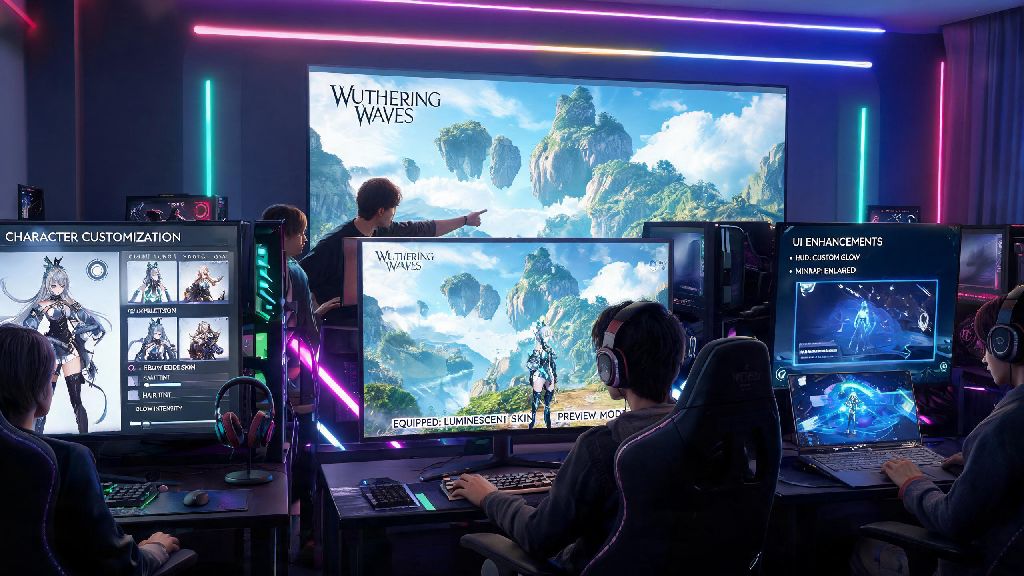
If you’ve spent any time in the Wuthering Waves community in 2026, you’ve probably seen clips of players running custom character skins, UI overhauls, and quality-of-life tweaks that make the open-world gameplay feel even more tailored to their tastes. Figuring out how to install mods on Wuthering Waves doesn’t have to be a confusing, risk-filled process, even if you’ve never modded a game before. I’ve been testing and installing mods for the game since the first major modding toolkit dropped in January 2026, and I’ve put together this guide to help you avoid the common mistakes that lead to crashes or account penalties.
Pre-Requisites You Need Before You Learn How to Install Mods on Wuthering Waves
First, you need to make sure you’re working with the right setup to avoid unnecessary issues. Only use the PC version of the game as of 2026, because console and mobile builds don’t support user mods, and trying to tweak those versions will almost always lead to a permanent account ban. You also don’t want to mod a copy of the game you downloaded from a third-party site, because those often have altered files that don’t work with standard mod tools.
Next, backup your game save files first before you touch any mod files. I used to skip this step when I first started modding earlier this year, and I lost 40 hours of progress when a broken mod corrupted my save file. Don’t make that same mistake. You can find your save files at C:\Users\[Your Username]\AppData\Local\WutheringWaves\Saved\SaveGames, just copy the entire folder to your desktop or an external drive before you start.
Finally, download a trusted mod loader to manage all your mod files. The most widely used option in 2026 is the open-source WuWa Mod Manager, which gets weekly updates to match the game’s latest patches. Don’t download mod loaders from random social media links, because many of them are packed with malware designed to steal your game account credentials. You should also confirm you have the latest official game update installed, because outdated game builds won’t work with 90% of new mods released this year.
Step-by-Step Mod Installation Process for 2026 Game Builds
Once you have all your pre-requisites sorted, the actual installation process only takes a few minutes per mod. First, install the WuWa Mod Manager you downloaded, run it as an administrator, and point it to your Wuthering Waves installation folder. It will usually auto-detect the folder if you have the game installed via Steam or Epic Games, but if not, you can find the file path by right-clicking the game in your library and selecting “browse local files”.
Next, download the mods you want to use from trusted, community-vetted sources. I get most of my mods from the WuWa Mod Hub, because I don’t have to worry about downloading malware or outdated files that will break my game. These are the only three sources I recommend using as of 2026:
Most mods you download will be in .zip or .wumod format, and you don’t even need to unzip them to install them. Just drag and drop the downloaded file directly into the WuWa Mod Manager interface, and toggle the switch next to the mod name to enable it. Always launch the game through the mod manager, not directly through Steam or Epic, to make sure all mods load correctly the first time you boot up the game. If you want to check if a mod is working, you can use the manager’s built-in “mod status” checker to confirm all enabled files are loaded properly.
Common Mod Installation Issues and How to Fix Them in 2026
Even if you follow every step perfectly, you might run into small issues from time to time, especially right after Kuro Games releases a new game patch. The most common issue is the game crashing immediately on launch, which is almost always caused by a mod that hasn’t been updated to work with the latest game build. Disable all mods first, then enable them one by one to find which one is causing the problem. Most mod pages list which game version they support, so if you’re running the latest 2026 update, make sure the mod was updated in the last 30 days.
Another common issue is mods not showing up in game, even when they’re marked as enabled in the mod manager. That usually means you launched the game directly instead of through the mod manager, or you moved your game installation folder after setting up the manager. The WuWa Mod Manager has a built-in debug tool that can scan for missing file paths, so run that if you run into this problem, and it will fix the pathing for you in one click.
The last issue you might run into is a warning message when you log into your game account. That means you tried to use a mod in co-op mode, which is against Kuro Games’ 2026 terms of service for online play. Disable all mods before joining co-op lobbies to avoid temporary or permanent account bans. I have a friend who got a 7-day ban last month because they forgot to turn off a custom damage number mod before joining a world boss raid, so it’s not a risk worth taking. Cosmetic and QoL mods are completely allowed for single-player play, but any mod that alters gameplay during online sessions will get flagged immediately.
Best Mods to Try First After You Master Installation
If you’re new to modding Wuthering Waves, start small with low-risk, high-reward mods before you start downloading dozens of custom skins and overhauls. The first mod I recommend for every new player is the 2026 WuWa QoL Pack, which adds features the community has been asking for for years, like a fast travel shortcut key, inventory sort options, and a skip cutscene button for cutscenes you’ve already watched. It doesn’t alter any gameplay mechanics, so it’s completely safe to use, even if you occasionally forget to turn it off for online play.
Next, you can try out custom character skin mods, which are all cosmetic and don’t change any gameplay elements. Most of these are made by other fans, and you can find custom outfits for every playable Resonator, from casual streetwear to alternate color schemes for existing official skins. Just make sure you only download skins from trusted sources, because some random skin uploads have been found to have hidden malware in 2026.
If you’re running the game on a lower-end PC, the Performance Optimization Mod is another great pick. It disables unnecessary background processes and reduces texture pop-in, and I’ve seen people get a 20-30 FPS boost with it installed, with no noticeable loss in visual quality. Stay away from any mods that claim to give you free Primogems or unlock paid characters for free, though. Those are always scams, either packed with malware or designed to trigger an immediate permanent ban on your account.
Modding Wuthering Waves can completely change how you experience the game, letting you tailor every part of it to fit your playstyle and preferences. Now that you know how to install mods on Wuthering Waves safely in 2026, you can start experimenting with different tweaks without worrying about crashing your game or losing your account progress. Start small with a couple of QoL mods first, then branch out to custom skins or visual overhauls once you get comfortable with the process, and don’t forget to share your favorite finds with the community.