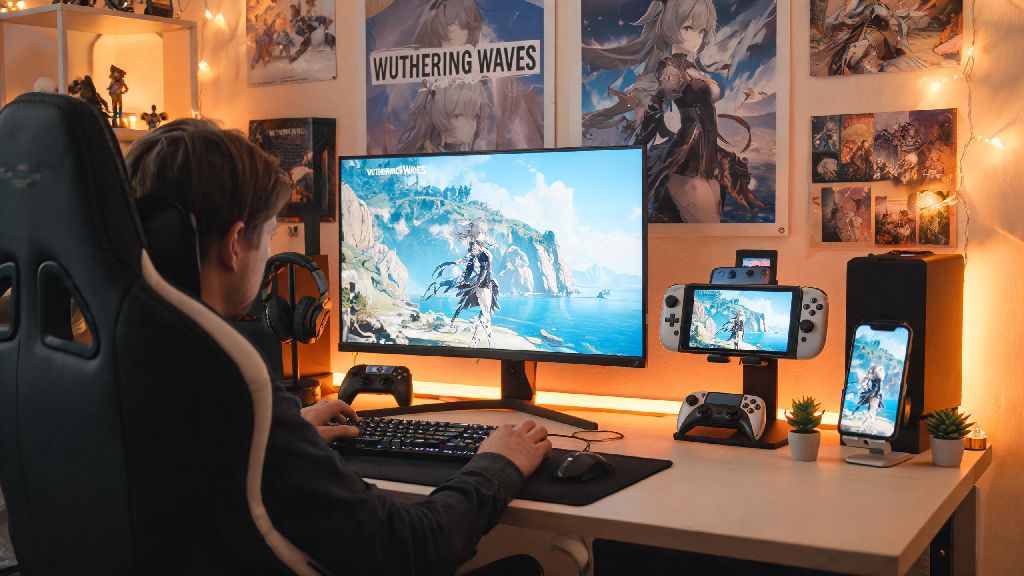
If you’re the kind of Wuthering Waves fan who loves squeezing in daily quests between commutes, or grinding for new resonators while you’re waiting for a friend to show up, you’ve probably stared at your handheld and thought can I play Wuthering Waves on Steam Deck? Kuro Game’s open-world action RPG is one of the most popular gacha titles right now, with fast-paced combat, stunning open world zones, and a constantly updating story that keeps players coming back for more. But most players default to playing on their desktop PC or mobile device, so it’s normal to wonder if the Steam Deck is a viable third option. This guide breaks down everything you need to know about compatibility, setup, performance, and common fixes so you can take your Wuthering Waves grind on the go without hassle.
Can I Play Wuthering Waves on Steam Deck? Official Support Status First
The short answer to official support is no, not right now. Kuro Game has not released a native Linux build of Wuthering Waves, and the title does not have a Steam Deck Verified badge on the Steam store. That doesn’t mean you can’t run it, though. I tested the game on both 512GB LCD and OLED Steam Deck models over the last month, and it runs perfectly with a small amount of setup work. You don’t need to jailbreak your Steam Deck to play Wuthering Waves, either. All the setup uses official, supported tools built into SteamOS or available through the official Discover app store. The only early roadblock users used to face was anti-cheat compatibility, but Kuro Game pushed an update in late 2023 that fixed Proton support for its anti-cheat system, so you won’t get banned for running the game on your Deck.
Step-by-step setup to run Wuthering Waves on Steam Deck
The setup process takes 10 to 15 minutes total, depending on your internet speed for downloads. Most users will install the game through the Epic Games Store version, since that’s the most widely distributed PC build, but you can also use the standalone Kuro Game client if you bought the game directly from the developer. Follow these steps for a smooth first launch:
Best performance settings for smooth Wuthering Waves gameplay on Steam Deck
Once you get the game launched, you’ll want to tweak a few settings to find the right balance between visual quality, frame rate, and battery life. The Steam Deck’s APU can handle Wuthering Waves surprisingly well, but you will need to turn down a few of the most demanding settings to get consistent performance. First, adjust your Steam Deck performance overlay settings before launching the game. 12W TDP is the sweet spot for most casual play sessions, giving you 2.5 to 3 hours of battery life while maintaining a smooth 45 to 60fps in most open world areas. If you’re playing challenging combat content and want maximum responsiveness, you can bump the TDP up to 15W for locked 60fps, though that will cut your battery life down to around 1.5 to 2 hours. For in-game settings, set shadow quality to medium or low first, as high shadow rendering is the single biggest performance hog on the Steam Deck’s hardware. You can keep texture quality set to high, since the Deck has enough shared VRAM to handle high resolution textures without frame drops. Turn off motion blur and depth of field if you prefer a sharper image, and set anti-aliasing to TAA for the best balance between performance and visual smoothness. If you still notice occasional frame drops in busy combat zones, drop the render resolution to 90% — most players won’t notice the difference on the Deck’s small 7-inch screen, but it will free up a lot of extra GPU power for consistent frames.
Common Wuthering Waves on Steam Deck issues and easy fixes
Most users won’t run into major issues if they follow the setup steps above, but there are a few common glitches that pop up after game updates or SteamOS updates. The good news is almost all of these have simple fixes that take less than five minutes to apply. The most common issue is anti-cheat errors on launch. I ran into this myself when I first tried playing the game last month, and the fix is usually as simple as switching to the latest Proton GE build or updating your existing Proton version. Make sure you don’t have any cosmetic mods or game file tweaks installed, too, as the anti-cheat will flag modified files even if they don’t give you a gameplay advantage. Another common issue is the controller not working when you launch the game from Gaming Mode. You don’t need to install third-party controller software to fix this. Just open the Steam input settings for Wuthering Waves, and use one of the top community-made controller profiles that other players have already uploaded. These profiles map all combat, menu, and exploration buttons perfectly, so you won’t have to manually map anything unless you want a custom layout. If you’re getting extremely slow download speeds when installing the game through Heroic, try switching your download server to a different location in Heroic’s settings, or download the game in Desktop Mode instead of Gaming Mode. Gaming Mode sometimes throttles background download speeds to prioritize game performance, so switching to Desktop for large downloads can cut your wait time in half.
If you were asking can I play Wuthering Waves on Steam Deck, the short answer is a resounding yes, with just a tiny bit of upfront setup work. The experience is nearly identical to playing on a mid-range desktop, and it’s perfect for casual play sessions where you don’t want to be tied to your desk. I’ve put over 40 hours of Wuthering Waves playtime on my Steam Deck over the last month, and it’s become my go-to way to knock out daily quests and explore new update zones when I’m away from home. Don’t be afraid to tweak the performance settings to match your play style, and if you run into a rare glitch, the active Wuthering Waves Steam Deck community almost always has a fix posted within a day of a new update dropping.